• Skip to primary navigation
  • Skip to main content
  • Skip to primary sidebar

Moto X Owners Community

  • Home
    • About
    • Forum
    • Register
  • Online User Guide
    • Moto X Layout
    • Turn on and off Moto X
    • Insert SIM card to Moto X
    • Notification icons in Moto X
    • Moto X finger (touch) gestures
    • Voice commands
    • Using Camera
    • Touchless Control Settings
    • Troubleshooting for Touchless Control
    • Touchless Control: FAQs
    • Motorola Assist
    • Active Display
    • Wireless Display
    • Motorola Connect
    • Active Notifications
    • Contact Us
  • How-to Guide
    • How to take screenshot on Moto X without using any apps?
    • How to add custom ringtones for Moto X?
    • How to reset Motorola Assist?
    • How to turn Moto X into silent mode?
    • How to to access developer options in Moto X?
    • How to setup and use Motorola Skip with Moto X
    • How to solve battery life problem of Moto X after KitKat (Android 4.4) update
    • How to add Flash Player support on Moto X (especially after KitKat update)?
    • How to reset Moto X?
    • How to connect Moto X with PC through USB cable?
    • How to manage files on Moto X with ES File Explorer File Manager?
    • How to use Wi-Fi Direct to transfer files on Moto G, Moto E and Moto X?
    • How to use USB On-The-Go (USB OTG) on Moto X?
  • User Manual
    • Official Moto X4 User manual (User guide for Moto X 4th Gen , Moto X 2017)
    • Moto X 2015 user manual: Moto X Pure edition, Moto X Style and Moto X Play
    • Moto X 1st Gen User Manual
    • Moto X 2nd Gen User Manual (Moto X 2014 User Manual)
  • Buyer Guide
    • HTC One vs Moto X
    • Moto X Case (cover) Guide
    • Accessories Guide
      • Moto X Case (cover) Guide

Active Display

Active Display allows selected portions of the AMOLED screen in  your Moto X to light up to reveal the time and incoming notifications. Even when the display is off,  you can still know all notifications without having to do an thing.

When new, important notifications arrive and your display is off, Active Display will fade a simple notification in and out to subtly get your attention.

Active Display in on by default when you receive your phone.

To enable Active Display: Touch  app-icon> Settings > Active Notifications > Ensure Active Display is checked

To disable Active Display: Touch  app-icon> Settings > Active Notifications > Ensure Active Display is not checked

The active display will not appear if Moto X detects your phone is:

  • In your pocket or purse
  • Facing down
  • On a call

To see a new notification, just drag your finger to the target.
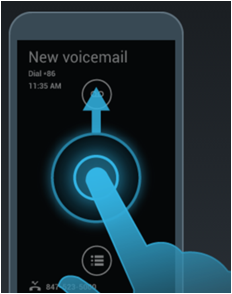
Moto X Active display

To unlock your phone, drag your finger down to the target.
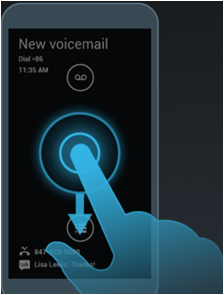
Moto X active display, unlock screen

To clear Active Display, drag your finger to the right or left edge of the screen and Active Display will clear until you receive something new.
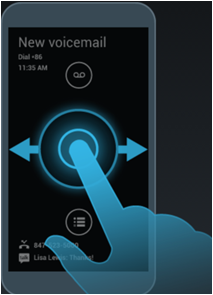
Moto X Active Display clear notifications

Moto X Active Display FAQs

Can I control which apps push notifications to Active Display?

Yes. You may customize exactly which apps publish notifications on the Active Display by going to “Manage notification types” in the Active Notifications settings.
To control which apps push notifications to Active Display: Touch  app-icon> Settings > Active Notifications > Manage notification types > Make desired selections

What if I don’t want people to see my notifications?

First, Active Display is designed with your privacy in mind. Unlike other solutions, no personally identifiable information is revealed on the top-level screen. Instead, you discreetly see the types of new notifications that are waiting for you and the time.

A preview of the top notifications is available when you interact with Active Display. However, this more detailed view can be suppressed by selecting “More privacy” in the Active Notifications settings menu. Enterprises can force the “More privacy” option by employing the Google Apps policy or other device policy that requires complex PINs or passwords.

To hide notification details when you are using a PIN or password lock: Touch app-icon > Settings > Active Notifications > Ensure More privacy is checked

Will using Active Display impact my battery life?

Active Display has been engineered to show critical information even when you phone is asleep. Even though the display fades in and out to ensure you are notified of the important stuff, we use very little power (just a few percent of the total battery capacity).

What if Active Display keeps me awake at night?

Active Display has been designed to employ just enough brightness such that the in and out fading will catch your eye in the ambient lighting conditions. You will find that is is very subtle in a dark room. If you wish to disable Active Display only during sleeping hours you may select this option and adjust the hours in the “Sleep at night” option under Active Notifications settings.

To disable notifications at night: Touch app-icon> Settings > Active Notifications > Ensure Sleep at night is checked ( Touch x-settings-icon to adjust time)


Share this:

  • Share on Facebook (Opens in new window) Facebook
  • Share on X (Opens in new window) X
  • Share on Pinterest (Opens in new window) Pinterest
  • Share on LinkedIn (Opens in new window) LinkedIn

Reader Interactions

Comments

  1. karu Dura says

    February 2, 2016 at 7:59 pm

    All of sudden my Moto X active notification not working. it shows only the notification but when I touch it it didnt show any details. It used to show but not now. I think something to do with Moto > Display > Hide Notification checkbox. Its greyout and unable to uncheck.

    Reply
    • simon says

      February 3, 2016 at 1:01 am

      Does it happen to specific apps or all apps? Did you turn on show notifications on lock screen on settings – sound and notifications?

      Reply

Leave a ReplyCancel reply

Primary Sidebar

RSS Galaxy S24 Guides

  • The definitive guide to One UI 7 (Android 15) update for Galaxy S24, S23, S22, and S21
  • The Definitive Guide to Galaxy AI on Galaxy S24, S23, S22, Fold 6, Fold 5, Flip 6, and Flip 5
  • Use the Light Performance Profile to Extend Battery Life and Reduce Heat on Galaxy S24, S23, S22, and S21 (all Samsung Galaxy Phones with Android 14/One UI 6.0)
  • How to adjust lock screen timeout on Galaxy S24, S23, S22, and other Galaxy devices?
  • How to use Circle to Search on Galaxy S24?
  • Meaning of Galaxy S24 status icons and notification icons on Galaxy S24, S24+, and S24 Ultra
  • Samsung Galaxy S24 Smart View Wallet Case: A Definite Guide
  • Understand Galaxy S24 Camera App
  • Galaxy S24 Flipsuit Case: A Definite Guide
  • How to use the new Battery Protection on Galaxy S24?

RSS Galaxy S23 Guides

  • Explanation of all One UI 6.1 features for Galaxy S23, S23+, S23 Ultra, and other Galaxy devices
  • How to use One-Tap Editing in the Android 14 (One UI 6) update?
  • How to enable and use Auto Scan to scan documents automatically on Galaxy S23, S22, and S21?
  • New camera features in One UI 6 (Android 14) update for Galaxy S23, S22, and S21

RSS Galaxy S22 Guides

  • A Complete Guide for Android 14 (One UI 6) Update on Samsung Galaxy Devices
  • How to touch and hold to customize Lock Screen on Galaxy S22, S21, and S20 with the Android 13 update?
  • How to use Maintenance Mode on Galaxy S23, S22, S21, and S20 with Android 13 (One UI 5)?

RSS Samsung Galaxy S21 Guides

  • Top 12 new features in Android 12 update for Galaxy S21, S20 and S10
  • Android 12 update vs One UI 4.0 vs One UI 4.1: update Galaxy S21, S20 and S10 to Android 12
  • How to set and resize photo size on Samsung Galaxy S21, S20, S10, and S9 without using any third-party apps?

RSS Android Guide

  • A Complete Guide to Android ADB Wireless Debugging
  • Android 16: the definitive guide on new features and changes
  • Master Android 15 Easter Egg Game: Landroid

RSS Chromecast Guide

  • How to enable developer options in Chromecast with Google TV and Google TV Streamer?
  • Meaning of LED light on voice remote for Chromecast with Google TV and Google TV Streamer
  • What’s new in Chromecast 2018 (3rd gen of Chromecast)?
  • How to use VLC media player on PC to stream music and video to Chromecast and Chromecast Audio?
  • How to use Chromecast Ultra to stream 4K content?
  • How to disable Google Home and Chromecast casting notification?

RSS Google Home Guides

  • How to Use Quick Gestures on Nest Hub 2nd Gen and Nest Hub Max?
  • Understand the layout of Nest Hub (including Nest Hub 2nd Gen, Google Home Hub)
  • How to control Nest Audio?

RSS Galaxy Note Tips & Tricks

  • Top 11 disappointments of Galaxy Note 20 and Galaxy Note 20 Ultra
  • How to use the Dynamic Lock screen on Galaxy Note 10?
  • Galaxy Note 10 LED View Cover Guide and Review

RSS Moto G Guide

  • Stylus features on Moto G Stylus (all models)
  • What’s new in Moto G 2024? Moto G 5G 2024 vs Moto G Power 2024 vs Moto G Play 2024
  • Understand Moto G Model Names
  • Thank You

RSS Kindle Fire for kids

  • Fire Tablet Buyer’s Guide 2025
  • How to use Writing Assist on Fire Tablet?
  • How to use Wallpaper Creator on your Fire tablet?

RSS Headphone Guides

  • Bluetooth LE Audio and the LC3 Codec: A Technical Deep Dive
  • The Physics and Engineering of Super Wide Band (SWB) Voice
  • True Wireless Stereo (TWS) Explained
  • The Complete Technical Guide to the Galaxy Buds 4 & Buds 4 Pro
  • The Right Fit of Galaxy Buds 4 — User Personas & Recommendations
  • Galaxy Buds 4 as an AI Earbud — Tips, Tricks, and Galaxy AI
  • AirPods Pro 3: The Complete Technical Guide and Long-Term Review
  • The Flagship Face-off: Galaxy Buds 4 Pro vs. AirPods Pro 3, Sony WF-1000XM6, and Bose QC Ultra Earbuds II

RSS Galaxy S4 Guides

  • Samsung Galaxy S4 Manual for Verizon
  • Galaxy S4 User Manual and Handbook in English
  • Samsung Galaxy S4 User Manual and Handbook in Italian (Italiano)
  • Galaxy S4 User Manual and Handbook in Portuguese (português, Brazil)

RSS Moto E Guide

  • How to use Moto E6 camera?
  • Moto E6 Guides
  • Moto E 2nd Gen (Moto E 4G): the best value-for-money smartphone in 2015

RSS Samsung Galaxy S5 Guide

  • How to enter Galaxy S5 recovery mode?
  • How to set Galaxy S5 photo size and video size?
  • How to use Galaxy S5 camera voice control?
  • How to customize Galaxy S5 camera shortcuts menu?

RSS Chinese Classical Music

  • How to Cast Chinese Music Radio to Chromecast or Google Home?
  • 十面埋伏 (Ambushed,Pipa,琵琶曲,Shi Mian Mai Fu)
  • Meet in Yurt(敖包相会, Ao Bao Xiang Hui,Folk song,民歌)
  • Purple Bamboo Melody(紫竹调, Zi Zhu Diao,Yangqin,扬琴)

RSS Drive in Singapore

  • Singapore ERP (Electronic Road Pricing): 6 Facts You Need to Know
  • Car Insurance in Singapore Explained
  • Top 5 rules of driving in Singapore safely and legally during COVID-19 Circuit Breaker period
  • Understand COE Price by 10 Simple Questions

© 2013–2026 · Moto X Hub Guides: Everything about Moto X: how-to guide, user manuals, tips and tricks for Motorola/Lenovo Moto X, Moto X2, Moto X3, and Moto X4 · Hosted by PTRHosting · Powered by Genesis framework for WordPress
MotoX Hub.com: a community for Moto X owner help other Moto X owners
Disclaimer: Motorola. Moto, and Moto X are trademarks of Motorola Mobility/Lenovo. This website is NOT affiliated with Motorola Mobility LLC in any way. All the information provided on this website is provided on an "as is" and "as available" basis and you agree that you use such information entirely at your own risk.

We use cookies to give you the best online experience. By using our website you agree to our use of cookies in accordance with our cookie policy.
pixel
